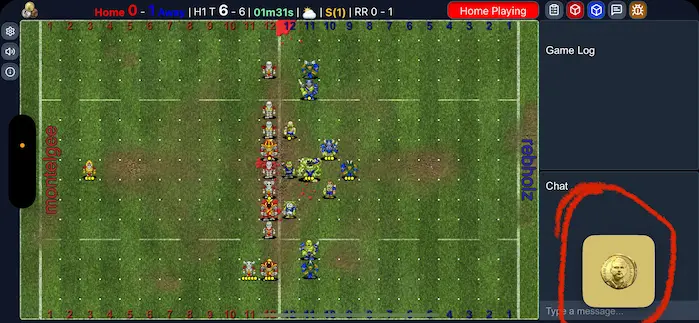
Appearance
Features
Camera & View
- Zoom: pinch the field.
- Pan: drag the field while zoomed.
- Reset: double-tap the field.
- Toggle zoom states: double-tap again to restore your last zoom/pan.
- Phone portrait pitch shift: swipe down on the pitch to slide it lower, and swipe up to restore it. This helps when Discord or iOS darkens or covers the top of the Activity.
Note: only one previous zoom state is remembered. Drawing is disabled while zoomed in to avoid coordinate issues.
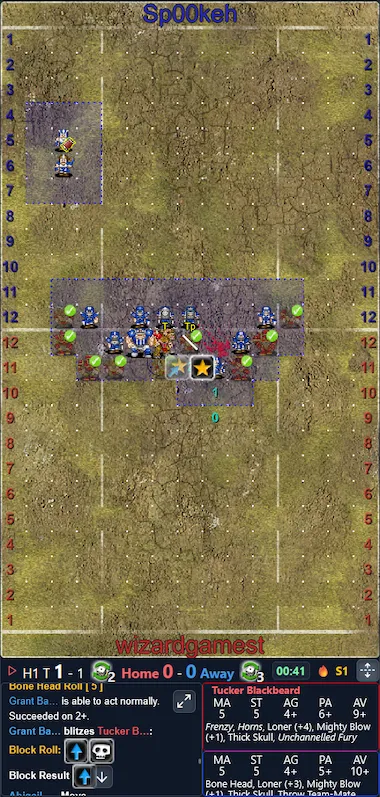
Responsive Layouts
The client adapts to the available screen shape:
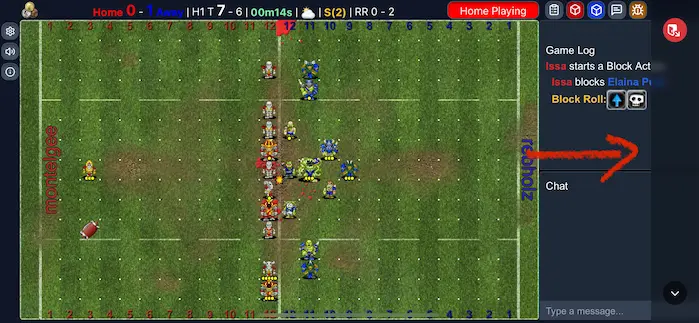
- Landscape: classic layout with the pitch and side panels.
- Phone portrait: compact vertical layout with bottom status and panels.
- Tablet portrait: portrait pitch with side panels.
- Tablet landscape: wide tablet layout with both team boxes, inducements, log, chat, and player panels visible at once.
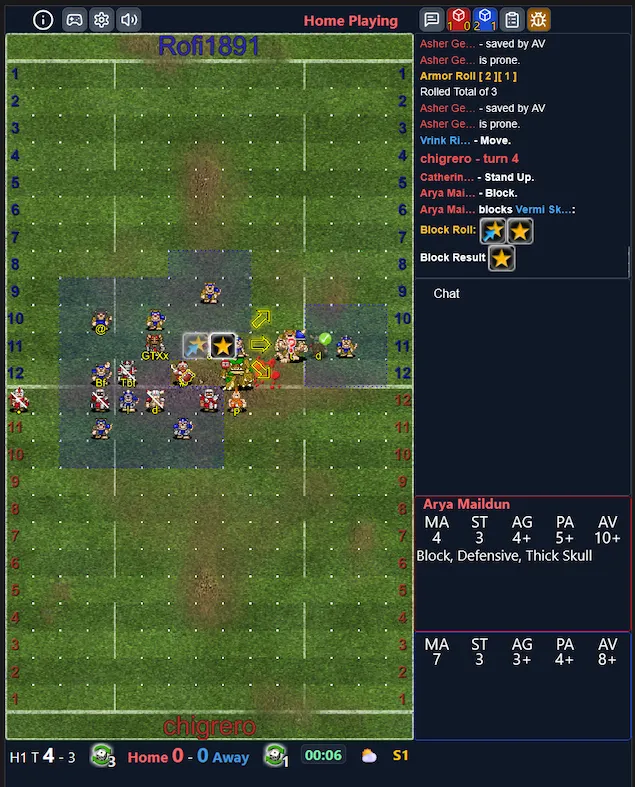
Field Interaction
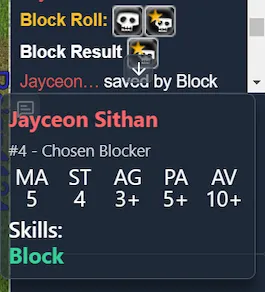
Tap/Click player: open player info, including skills, stats, and injuries.
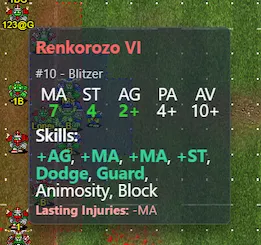
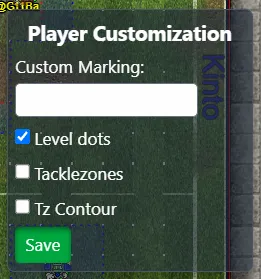
Right-click/Long-press player: open Player Customization.
Click empty tile: ping the ball with a short animation.
Right-click/Long-press empty field: open Tactical Panel.
Status Bar
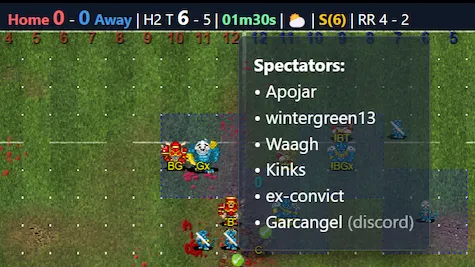
- Home/Away, Time, Weather, and Spectators are clickable for details.
- Values update live while spectating.
- The status bar changes shape depending on layout.
- Phone portrait uses a compact bottom bar with reroll icons.
- Landscape keeps the status bar near the top.
- Tablet landscape keeps the status bar under the pitch with tools beside it.

Panels & Toggles
- Toggle Team Boxes, Game Result Panel, and the Chat/Log panel.
- Chat and Log share a single panel area when visible.
- In phone portrait, tap the actions button to expand or retract the extra controls.
- Phone portrait uses redesigned bottom panels for the log, active/passive player info, boxes, inducements, and game results.
- Tablet portrait uses a portrait pitch with side panels.
- Tablet landscape keeps the main panels visible below the pitch, while both team boxes and inducements stay beside the pitch.
Game Log
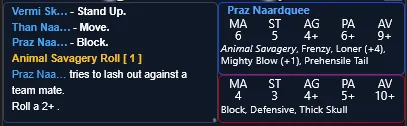
- Clickable players: names in the log are interactive. Click to open the player's info panel.
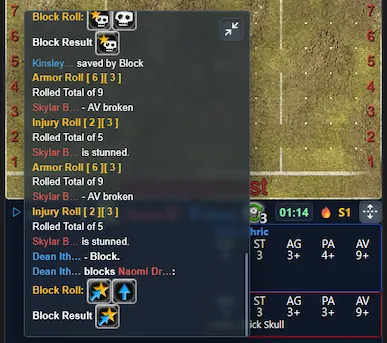
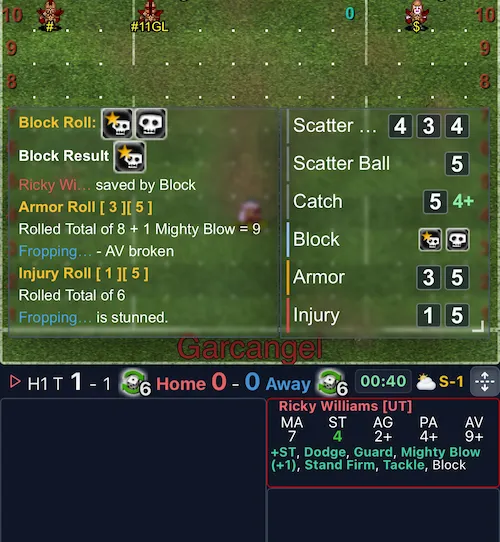
- Block dice: dice results are rendered as icons instead of plain text.
- Jump to bottom: the log auto-scrolls during live spectating, but if you scroll up, a quick Jump to Bottom button appears.
- Expand log: when you scroll back in the log, an expand button appears. Use it to temporarily open a larger log view, then collapse it when done.
- Pop out log: the expanded log can be popped out, moved, resized, and docked back into the normal layout.
- Dice feed: open a separate dice feed to follow recent dice rolls without mixing them into the full game log.
- Compact mode: toggle in Settings -> Chat & Log to shorten player names and reduce spacing.
- Minimal toggle: the log controls include a shortcut for switching compact log display on or off.
- Font size: adjust game log and chat font sizes in Settings -> Chat & Log.
- Popup controls auto-hide when you are not using them. Move the cursor or tap near the popup to show them again.
Team Boxes & Inducements
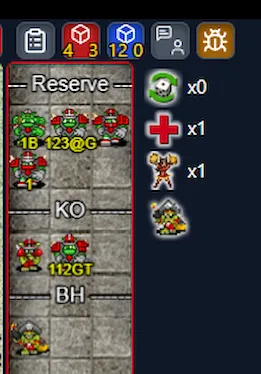
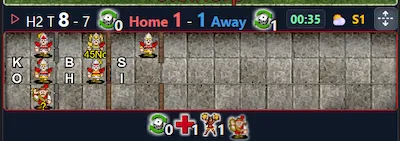
- Team boxes show reserves, KOs, casualties, bans, and inducements.
- Phone portrait uses a horizontal box layout with icon-style section separators.
- Tablet landscape shows both team boxes and inducements beside the pitch.
- Inducement counts are shown as badges on the inducement icon.
Tactical Panel
Opening: Right-click on desktop or long-press on mobile on the pitch background.
Draggable: You can drag the panel by its handle to reposition it.
Tools:
- Drawing tool: freehand markings on the pitch.
- Tackle Zones
- Mode dropdown: Off / Home / Away / Both / Passive
- Toggle Single TZ to collapse overlaps
- Toggle Contour for filled and outlined zones
- Opacity slider to adjust transparency
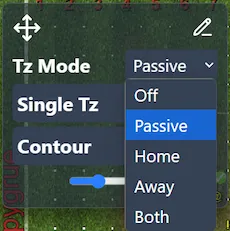
Pings & Drawing
Ping
- Ping a player: right-click on desktop or long-press on mobile on the player.
- Ping the ball: click/tap an empty tile.
- In Multiplayer rooms, everyone in the Activity sees player pings.
What happens: a small yellow halo pulse animates around the target.
Drawing
- Open the Tactical Panel and choose the pencil tool.
- In Multiplayer, drawings are broadcast to everyone in the Activity.
- In Solo, drawings are local only.
- Live multiplayer drawings auto-hide after about 5 seconds.
- In paused shared replays, drawings act as teaching annotations: they stay on the pitch, can stack on top of each other, and are cleared when playback resumes.
- The shared replay controller can clear paused replay annotations for everyone.
- Drawing does not trigger the phone portrait pitch-shift gesture.
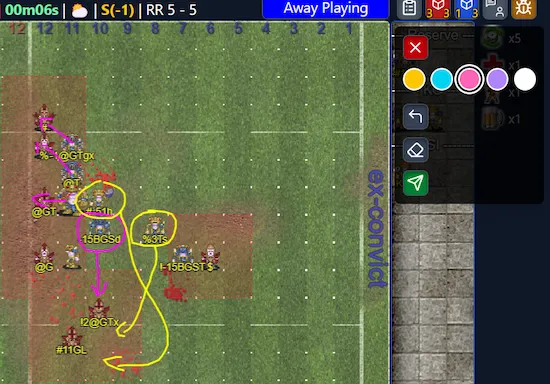
Settings
- Allow drawings: toggle on/off in Settings -> Multiplayer.
- Preview/Approval mode: enable Require approval to preview incoming drawings before accepting them.
Reporting
- If someone draws something inappropriate, click Report on the drawing header.
- Optional comment is sent with the stroke data to the server.
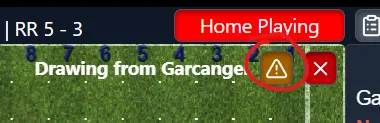
Saved Replays
- Save any live game or replay for later viewing.
- Access via Replay List, up to 10 entries.
- Delete entries any time; list refreshes automatically.
- See Replays for details.
Replay Controls
- Draggable overlay during replay mode.
- Position is remembered until you exit replay mode.
- In shared replay rooms, replay controls are shown only to the controller.
Pop-Out Mode
- In Discord voice channels, click Pop Out.
- Opens the client in its own window, separate from Discord.
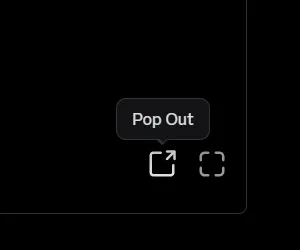
Mobile Support
- Phone portrait, tablet portrait, and tablet landscape layouts are supported.
- Pinch-zoom and pan with two fingers on the field.
- Double-tap to reset/restore zoom.
- Swipe down/up in phone portrait to shift the pitch when the top of the field is hard to see.
- Portrait controls use a compact action flyout.
- Solo Room is muted by default.
iPhone UI: Text vs Voice Channels
Text channel
- Shows a persistent Exit bar.
Voice channel
- Shows a floating avatar overlay for the call.