Appearance
Spectating Games
Fastest Way to Spectate
When you see a Game Detected message in Discord:
- Click Spectate.
- Click Open in Text or Open in Voice.
- FFB Spectator opens and the game loads automatically.
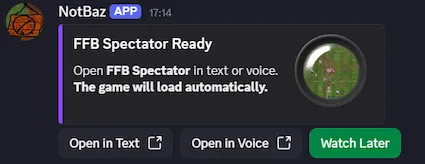
Use Open in Text for quiet solo viewing, or Open in Voice when you want to watch with others.
If the open buttons expire, click Spectate again to create fresh launch buttons.
Who is Spectating?
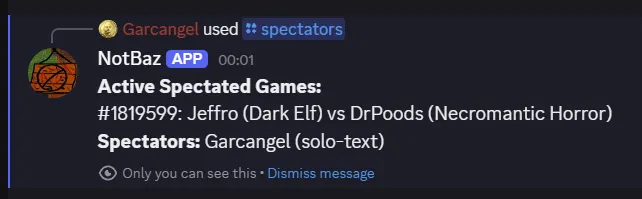
- Use
/spectatorsto see who is watching each game and which channel they are in. - Clicking Live Update on a Game Detected message shows links to any rooms where that game is currently being spectated.
Multiplayer Features
When spectating in a shared room:
- Everyone watches the same live game or replay chosen by the controller.
- The controller is usually the first person to launch the Activity.
- During shared replays, only the controller has replay playback controls.
- If the controller disconnects, a new controller is assigned after 60 seconds.
- Shared tools: drawings and player pings are visible to all participants.
See Pings & Drawing for details.
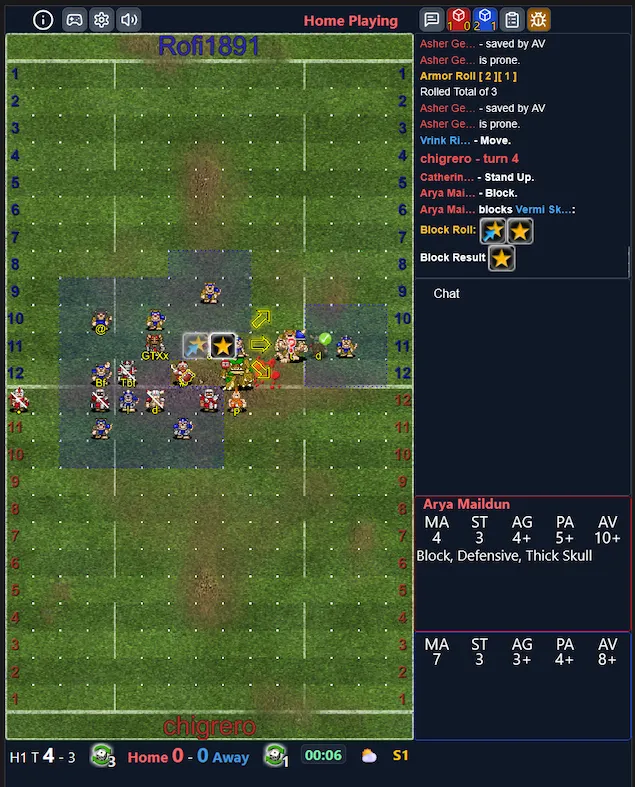
Responsive Spectating Layouts
The spectator client adapts to the available screen:
- Landscape: classic pitch plus side panels.
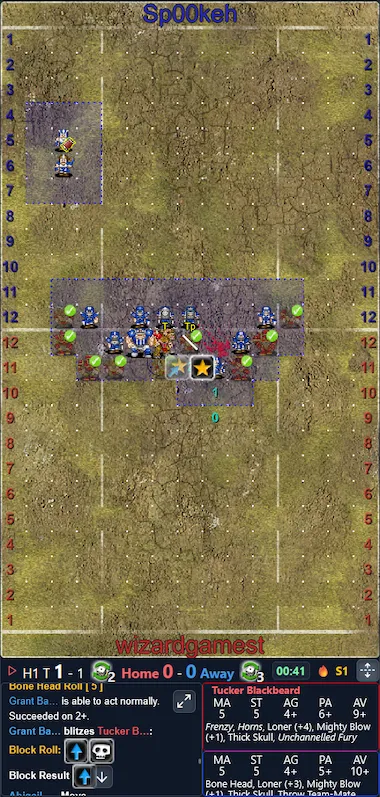
- Phone portrait: vertical pitch, compact bottom status bar, and bottom panels.
- Tablet portrait: vertical pitch with side panels.
- Tablet landscape: wide tablet view with both team boxes, inducements, log, chat, and player panels visible.
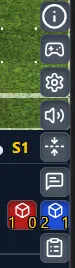
Phone Portrait Controls
- Tap the action button to expand or retract extra controls.
- Swipe down on the pitch to slide the pitch lower.
- Swipe up on the pitch to restore it.
- Use this when Discord, iOS, or the dynamic island makes the top of the pitch hard to see.
- Drawing mode disables pitch shifting so drawing gestures do not move the pitch.
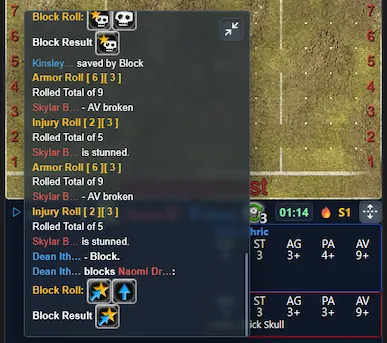
Game Log While Spectating
- The log auto-scrolls while you are at the bottom.
- If you scroll back, a Jump to Bottom button appears.
- An Expand Log button also appears so you can inspect older reports in a larger overlay.
- The expanded log can be popped out, moved, resized, and docked back into the normal layout.
- Use the separate dice feed when you want recent dice rolls without the full game log.
Tactical Panel
- Right-click / long-press empty field to open the Tactical Panel.
- Tools available:
- Toggle tackle zones
- Access drawing tools
- The panel is draggable.
- Right-click / long-press a player to open Player Customization.
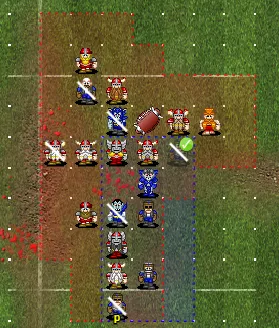
Tackle Zones
- Toggle zones on or off.
- Option to show only opponent zones, or per-team zones.
- Settings live under Players in the Settings panel.
Tips
- On desktop voice channels, use Pop Out to open the client in its own window.